 In one of my earlier posts, I had talked about what a Favion is and how you can create a Favicon using Favicon.cc. I had also written that there are various ways through which you can create a Favicon and Favicon.cc is just one of them.
I was reading a recent comment on the post and felt that I should also be sharing with you some other, easy ways for creating Favicons.
Primarily there are two ways you can create a Favicon:
- By using any online service
- By using a desktop software
Online Services
Here is the list of some free and easy to use online services by which you can create your own Favicon.
- Antifavicon [Pretty useful for only text Favicons]
- Degraeve [Hybrid support : image + pixel grid]
- Dynamic Drive [Supports edits on uploaded image]
- Favikon [Allows direct image conversion to Favicon]
- Genfavicon [Allows image conversion to Favicon including image upload from a url]
Desktop Applications
You can also try creating Favicons by using various licensed / free desktop applications. Here are a few:
- Gimp
- Photoshop
- Irfanview
- Icon Sushi
Illustration
Let’s try to see how easy it is to make a Favicon using Photoshop:
Step 1: Open the image in Photoshop.

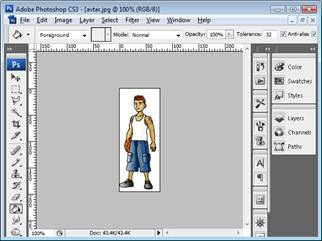
Step 2: Crop it into a square using ‘Crop’ tool

Step3: Change image size to 16*16 pixels from Image > Image Size

Step 4: Save the file as Windows Icon file by selecting the related option from “Save As” dialogue box

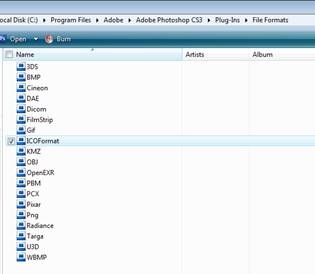
Step 4: In case you do not see the related option, probably you need to add support for “.ICO” in Plug-Ins>File formats directory of the Photoshop installation directory.
Hope this was useful!
5 Comments
I use Dynamicdrive a lot but I don’t know that it has a favicon generator!!
Thanks for sharing this valuable stuff!!
@ Pro-Vamsi,
I’m glad you found this useful.
Thanks sawati but i dont think so
this post worth posting in DW?
Its veri basic thing to convert
images into favicon with softwares???
@ gstek,
Appreciate your concern. But like we all know, it’s a mixed bag of audience we have here… the post was in response to a comment on a previous post. Need to keep everyone on the boat. 🙂
Thanks Swati for responding to my earlier question via this post.
The info shared by you has been very useful. Also, I really like the way DW engage the audience.